Before you start: categories and versions
Pressing Click to Start BannedStory 4 on the homepage opens the Startup Categories window. It has two tabs. Categories decides which groups of items appear in the Thumbnail Gallery; for dressing characters you need Character and Equipment. Everything starts ticked, so you only have to change this if you want a shorter gallery.
The Versions tab lists the MapleStory clients the art comes from: v83, v117, v213, MapleSEA 226, GMS v269, TMS 273, and JMS v402. All of them are ticked by default. When two versions contain an item with the same ID, the newest ticked version wins. So if you want the classic v83 drawing of an item that was redrawn later, untick the newer versions before you press Start. At least one version always stays ticked.
Tip: Forgot something? File > Add new Category (Ctrl + B) reopens the same window without touching your scene. Categories and versions you already loaded stay locked on, so you can only add to them. Leave Include Thumbnails ticked unless your connection is slow; without it the gallery lists items as text instead of pictures.
Start with a body and head (they set the skin tone)
There is no skin color slider. Each skin tone is its own Body thumbnail and its own Head thumbnail, so the tone is chosen simply by picking those two items. The editor does not add a head for you, and clothes, hair, and weapons are drawn relative to the body, so they stay invisible on a layer that has no Body or Head yet.
- Click an empty spot on the canvas so that nothing is selected.
- In the Thumbnail Gallery, open Character > Body and click a body. A new layer named "Character Layer" appears in the Layer Panel and stays selected.
- Open Head and click the head in the matching skin tone. It joins the same layer instead of creating a new one.
- Carry on with Face, Hair, and equipment. As long as that character layer is selected, every Character item you click is added to it.
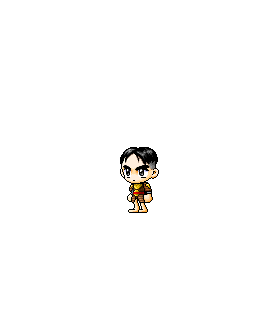
The rule behind step 4 is worth knowing: clicking a Character item while a character layer is selected dresses that character. Clicking it with nothing selected, or with a different kind of layer selected, starts a brand-new character (if an empty layer made with Add New Layer is selected, the item fills that layer instead). Clicking empty canvas clears the selection, which is the quickest way to begin a second character.
Faces, hair, and their colors
Clicking a Face or Hair thumbnail does not add it straight away. A small color menu opens at your cursor first. Faces come in up to nine eye colors (Black, Blue, Red, Green, Yellow, Cyan, Purple, Magenta, and White) and hairstyles in up to eight (Black, Red, Orange, Yellow, Green, Blue, Purple, and Brown). Only the colors that exist for that item in the game data are listed, so some menus are shorter. Press Escape to close the menu without choosing.
A character wears one face and one hairstyle, so picking another replaces the current one. To compare colors, click the same thumbnail again and choose a different color. The Gender Options checkboxes (Male, Female, No Gender) in the gallery help when you are scrolling through hundreds of faces or hairstyles.
Two hair and head settings in Character Properties
- Auto Flat Hair is ticked by default. While the character wears a hat, it hides the back sections of the hairstyle so they do not stick out behind the hat. Untick it if a particular hat looks better with the full hairstyle.
- Show Pointed Ears switches on the head's pointed-ear drawing. It is off by default.
Hats also carry the game's own information about which parts of the hair they cover, so a full helmet hides more hair than a small cap. That is why the same hairstyle can look different under two hats.
Equipment slots and what replaces what
The Character section of the gallery is split into Body, Head, Face, Hair, Cap, Cape, Coat, Pants, Shoes, Glove, Longcoat, Shield, Accessory, and Weapon. Each item fills a slot, and clicking another item for the same slot swaps it. A few slots interact:
- Longcoat is an overall: it takes the place of both Coat and Pants. Adding a Coat or Pants afterwards removes the Longcoat.
- Accessory includes face accessories, eye accessories, and earrings. Each kind has its own slot, so a character can wear one of each.
- Weapon holds one weapon at a time. The exception is a Dual Blade weapon (item IDs starting with 0134), which can be worn alongside a one-handed sword, axe, mace, or dagger.
- Shield only stays on with one-handed swords, axes, and maces, daggers, wands, staffs, and claws. Equipping any other weapon, cash weapons included, removes the shield, and adding a shield removes such a weapon.
Where are the cash items?
Most equipment categories show a Jobs row of icon buttons: Beginner Job, NX Cash, Warrior Job, Mage Job, Bowman Job, Thief Job, and Pirate Job. Only one is active at a time and Beginner Job is selected when you start, so cash items stay hidden until you press NX Cash. A greyed-out button means that category has no items for that job.
If you know what you want, type into the gallery's Search box instead. It matches item names and IDs across everything you loaded, and runs a second after you stop typing (or immediately when you press Enter). While a search is active, the Gender and Jobs filters are set aside. Reset clears the search. Hovering over a thumbnail shows its ID and names in the Names panel, which helps when two items look alike.
Weapons change the pose list
A visible weapon or shield changes the State list in Character Properties. Instead of every pose the body can do, it shows the poses that weapon supports, such as "1H Weapon Swing 1" or "Weapon Shoot 1", plus "Sit", "Climbing a Ladder", and "Climbing a Rope". If a pose you expect is missing, hide the weapon's row in the Inventory Panel and the full list comes back. Choosing and playing poses is covered in Animating Characters.
Fine-tuning single items in the Inventory Panel
The Inventory Panel (Window > Inventory Panel, or press 2) lists every item on the selected layer, with the body first. On a heavily dressed character, the Search items box finds a row quickly.
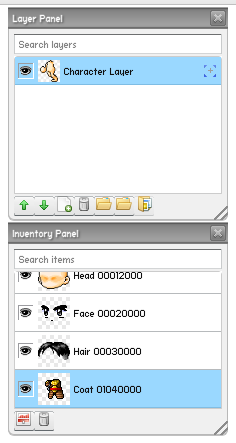
- The eye button on a row hides only that item. Hidden items are left out of the character on the canvas, so it is an easy way to compare an outfit with and without a cape.
- Remove selected item takes the highlighted item off the character entirely.
- Apply color filters opens a color box for the highlighted item alone, with Brightness, Contrast, and Saturation (-100 to 100), Hue (-180 to 180), Alpha (0 to 1), and a Reset button. Shifting the Hue of a coat recolors the coat without touching skin or hair.
Common mistake: The color box always edits the highlighted Inventory row. Click the row you want to recolor first, or you may tint the body instead of the shirt.
Colors and effects for the whole character
With the character selected, the Properties panel has two more tabs that act on the entire layer. Color Filters stacks effects: press the plus button and choose Shadow, Blur, Glow, Bevel, or Color Transform (a layer can have one Color Transform). Use the arrow buttons to change the order and the minus button to remove the selected filter. Appearance holds the blend mode (Normal, Multiply, Screen, Overlay, Add, Difference, Invert, and more) and Smooth Scaling, which decides whether a resized character is smoothed or keeps hard pixel edges.
Tip: A dark Shadow or a soft Glow helps a character stand out against a busy map background. Because filters belong to the layer, they move with the character.
Stuck for ideas? Use the Random Generator
- Open Window > Random Generator (or press 4).
- Set Item Type to Character Items. The list only offers categories you loaded at startup.
- Tick the parts to randomize. Male, Female, No Gender, Body, and Face start ticked; add Hair, Hat, Top, Bottom, Overall, Cape, Gloves, Shoes, Shield, Weapon, or the Face, Eye, and Ear accessories as you like. Ticking Overall unticks Top and Bottom, and the other way round.
- Press Generate. Each press builds a new character on its own layer with a matching head and random face and hair colors.
The generator never changes a character you already made. Keep the results you like, select the others and press Delete, then refine a keeper by selecting it and clicking gallery items as usual.
Common problems and fixes
- My new item started a second character.
- The character layer was not selected when you clicked. Undo with Ctrl + Z, select the character on the canvas or in the Layer Panel, and click the item again.
- Clicking an item removed another one.
- They share a slot. Check the Longcoat, Coat, and Pants rule and the shield and weapon rule above.
- I can't find a cash outfit.
- Press NX Cash in the Jobs row, or search for the item by name.
- Hair, a hat, or a weapon is invisible.
- Make sure the layer has a Body and Head, and that the item's eye button in the Inventory Panel is not switched off.
- "One item could not be loaded."
- The item's art did not download. Click the thumbnail again; if it keeps failing, use Help > Report a Bug... and name the item.
- I pressed Stop or Cancel while an item was loading, but it still appeared.
- Those buttons only close the loading message. The item is already on the character, so use Undo to remove it.