Before you export: three things that apply to everything
- Exports are browser downloads with fixed names. BannedStory doesn't ask for a file name; unless your browser is set to ask where to save, the file lands in your downloads folder as, for example, "BannedStory_canvas.png". Rename it afterwards, especially if you export several times in a row.
- Exports are always at 100% size. The Canvas Zoom slider in Canvas Properties only changes your view. To make a bigger image, scale the layers themselves with the Transform Tool.
- The Background Color matters for some formats. Click an empty part of the canvas to see Canvas Properties and its Background Color picker. PNG, sprite sheets, and Photoshop code ignore it and stay transparent; JPG, GIF, and SWF use it as the background.
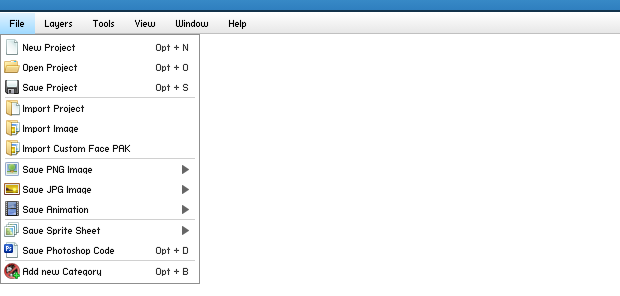
Still images: Save PNG Image and Save JPG Image
Both commands have two choices in their submenu and download immediately, without a dialog.
- Whole Scene
- Captures every visible layer, then trims away the empty margin around them. The file is "BannedStory_canvas.png" or "BannedStory_canvas.jpg".
- Selected Image
- Captures only the selected layer, on its current frame, cropped tightly around it. The file is "BannedStory_image.png" or "BannedStory_image.jpg".
PNG keeps a transparent background, which is what you want for avatars, forum signatures, and anything you will place over other artwork. JPG fills the background with the canvas Background Color and is saved at maximum quality.
What "Whole Scene" actually covers
Whole Scene captures a rectangle the size of your canvas area, measured at 100% from the scene's top-left corner, where X and Y are 0. Anything placed beyond that rectangle, including anything at a negative X or Y, is left out. This matters most after loading a big map: the editor zooms out so you can see the whole map, but the export is taken at 100% and only includes the part that fits in the canvas area.
- Set Canvas Zoom back to 100% and scroll to the top-left, so the view matches the export area.
- Make sure everything you want sits fully below and to the right of the scene's top-left corner. A layer's X and Y mark its anchor point (for a character, near the feet), and the art reaches above and to the left of it, so leave a margin.
- For more room, enlarge the browser window, close the Properties panel, or use View > Full Screen (Ctrl + F).
- If you only need one character, use Selected Image instead; it is not limited by the canvas area.
If you see "The canvas seems to be empty!": No visible layer was found inside the capture area. Unhide your layers, or move them toward the top-left corner of the scene.
Animations: Save Animation as GIF or SWF
Save Animation exports the selected layer only, with every frame of its current state. It does not matter whether Animate is ticked. Select the layer first; otherwise you will be asked to select an image from the stage.
As GIF
- Pick a Background Color in Canvas Properties before you start. The frames are drawn on top of it.
- Select the layer and choose File > Save Animation > As GIF.
- Answer the question "Do you want a GIF with transparency?". Yes turns the background color transparent; No keeps it as a solid background; Cancel stops.
- Wait for "Creating GIF image..." to finish, then press Save on "Ready to SAVE the GIF image." The file is "BannedStory_image.gif" and loops forever.
Avoid holes and halos: GIF transparency is all-or-nothing per color, and a GIF holds at most 256 colors. With Yes, colors very close to the background may also turn transparent, and soft sprite edges keep a thin rim of the background color. Choose a background color that does not appear in your sprite, and one close to the color of the page where the GIF will be shown.
As SWF
As SWF writes a real Flash animation, "BannedStory_animation.swf", running at 60 frames per second with the game's frame timing and the canvas Background Color behind it. It is mainly useful if you still work with Flash-era tools. Frames larger than 3,276 pixels on a side cannot be saved this way.
Characters keep their current face in both formats; Animate Face is not exported. "Standing 1", "Standing 2", and "Alert" play back and forth, as they did in the original BannedStory. More on states and frames is in Animating Characters.
Sprite sheets for games and video editors
File > Save Sprite Sheet exports every frame of the selected layer as separate transparent PNG files inside "BannedStory_SpriteSheet.zip". Both versions run in two steps ("Creating images..." and "Creating Sprite Sheet...") with a progress bar and a Cancel button, so even large characters with thousands of frames can be stopped safely.
Normal Sprite Sheet (Ctrl + G)
- Images are named after the state and their position in the playback sequence, for example "stand1_0.png", "stand1_1.png", "walk1_0.png". Standing and alert poses are written back and forth, so "Standing 1" gives five files (frames 0, 1, 2, 1, 0). Pictures, chat balloons, and name tags are numbered "0.png", "1.png", and so on.
- A "data.xml" file lists every image with its delay in milliseconds and an x and y offset back to the sprite's origin point. Use it to line frames up again in a game engine.
- All frames of one state share the same size, so they line up without extra work.
- For characters, the standard set of poses is exported: walking, standing, alert, the swing, stab, and shoot attacks, lying down, healing, flying, jumping, sitting, and climbing, as far as the character has them. A layer made with Clone Layer States exports only its own state.
Sprite Sheet with Face Expressions
This version only works on a character with a face. It creates a folder for each expression and each face frame, with the body poses inside, such as "blink/frame 0/stand1_0.png". It has no data.xml. It produces many files, so expect it to take longer than the normal sheet.
Save Photoshop Code: keep layers editable in Photoshop
Save Photoshop Code (Ctrl + D) downloads "BannedStory_Photoshop_code.zip", which contains numbered PNG pieces ("Image_0.png" and so on) and a Photoshop script, "jsx_code.jsx".
- Unzip the download into its own folder.
- In Photoshop, run "jsx_code.jsx" as a script.
- When the script asks you to "Locate the folder where the images are stored", choose the unzipped folder.
- The script builds a document called "BannedStory Image" with one layer group per editor layer ("Layer 0", "Layer 1", and so on), places each piece where it was in the scene, and trims the transparent edges.
Because every piece arrives as its own Photoshop layer, this is the export to use when you want to paint over a scene, add lighting, or adjust one item after the fact.
Save Project: the file you can keep editing
Save Project (Ctrl + S) shows "Creating BannedStory project..." while it collects your layers, then "Ready to SAVE the BannedStory Project." Press Save to download "BannedStory_Project.bsproj". Reopen it later with File > Open Project, or merge it into another scene with File > Import Project.
- The project keeps layers and groups, positions, states and frames, Animate settings, filters, appearance, Inventory colors, the Background Color, and the zoom level.
- Imported pictures and custom faces are stored inside the file. Game art is stored as a reference and downloaded again when the project opens, which keeps files small.
- An empty canvas cannot be saved; you will see "The canvas can't be empty!".
- The file uses the .bsproj extension, but it is the new BannedStory 4 format. The original Flash BannedStory cannot open it.
Save often: The editor does not autosave. Closing or reloading the tab loses anything you have not saved, so press Ctrl + S whenever you reach a version you like. Old Flash-era projects are covered in Opening Old BannedStory Projects.
When an export goes wrong
- "Please, first select an image from the stage."
- Selected Image, Save Animation, and the sprite sheets need a selected layer. Click it on the canvas or in the Layer Panel.
- "The image seems to be empty!"
- The selected layer drew nothing on its current frame, or it is larger than 2,800 pixels in one direction. Check the Inventory for hidden items, or reduce the layer's scale.
- The exported scene is cut off.
- See "What Whole Scene actually covers" above: move the content toward the top-left and give the canvas more room.
- "The image must be a character!" or "This character does not have any face."
- The face expression sprite sheet only works on a character layer that has a Face item.
- "The image could not be saved."
- Rendering failed, for example because some art did not download. Try again; if it keeps happening, report it with Help > Report a Bug... so the scene can be checked.